Social media scheduler for seven channels
Mark's Calendar schedules approved posts into posting slots on Instagram, Facebook, YouTube, Pinterest, TikTok, X and LinkedIn.
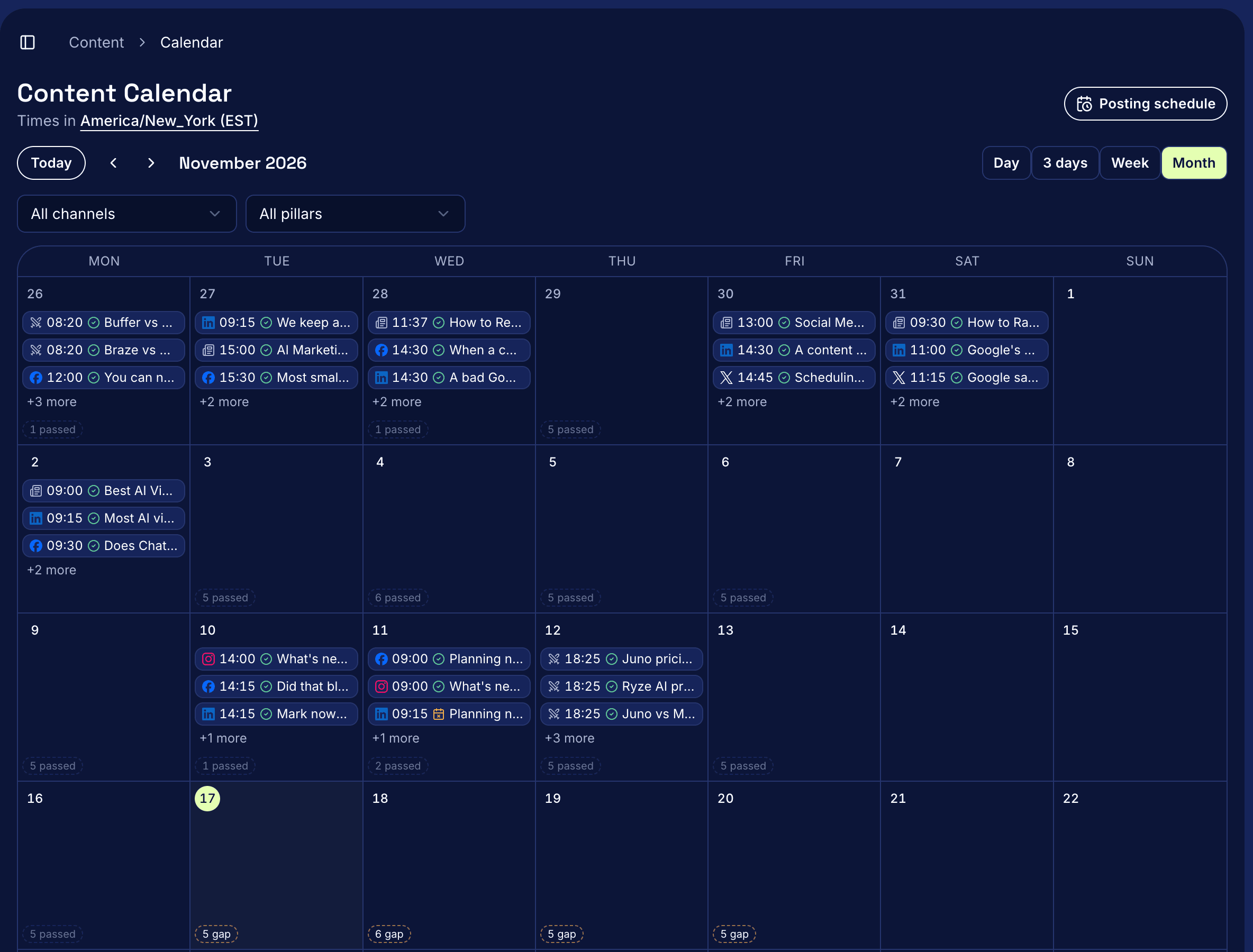
What it does
Mark's Calendar schedules your posts on seven social channels (Instagram, Facebook, YouTube, Pinterest, TikTok, X and LinkedIn) into posting slots you set for each one. Once a person approves a post, Mark hands it to the publisher and it goes out at its scheduled time. The Calendar shows every post and open slot by day, three days, week or month, in your workspace timezone.
How it works
- Set posting slots. A slot is a day and a number of posts for a channel. Posting schedule, at the top right of the Calendar, opens them.
- Read the Calendar. Open Content > Calendar. Each post card shows its channel, time, a status icon and the first line of the post. An empty slot reads Gap in the next 7 days, Open further out, and Passed once the day is over.
- Fill a gap. Select a Gap or Open slot and pick a draft or a post in review that has no time yet. Mark gives it the day's next free time: the channel's posting time plus 3 hours for each post already that day.
- Move a post. Drag its card onto a slot that reads Drop here, or pick a slot under Move to slot in the card's menu. A post moves only within its own channel.
- Approve it. Filling a slot never approves or publishes anything. An approved post reads Handing off for a few seconds, then Scheduled.
Questions
Does moving an approved post change its approval?
Yes. Any post other than a draft goes back to review with its new time, so someone approves it again before it can publish.
Can I see one channel at a time?
Pick one or more channels from All channels, or pick a pillar. The filters stay in the page's link, so a reload keeps them and you can share the filtered view.
Does Mark post LinkedIn Articles?
No. LinkedIn has no way for an app to post Articles. An approved Article reads Publish by hand, and you copy it into LinkedIn and record its link.
What if a post can't be handed off?
It reads Stuck, with the reason: no scheduled time, no connected account, or no hand-off within 5 minutes. Mark doesn't retry a stuck post on its own.
Are there keyboard shortcuts?
Yes. Press D for Day, 3 for three days, W for Week, M for Month and T for Today.
Read the docs
For views, slots and moves, read Use the calendar.