Backlink checker for your own websites
See which sites link to your website, how strong each link is, how spammy the linking sites are, and how your totals change over time.
What it does
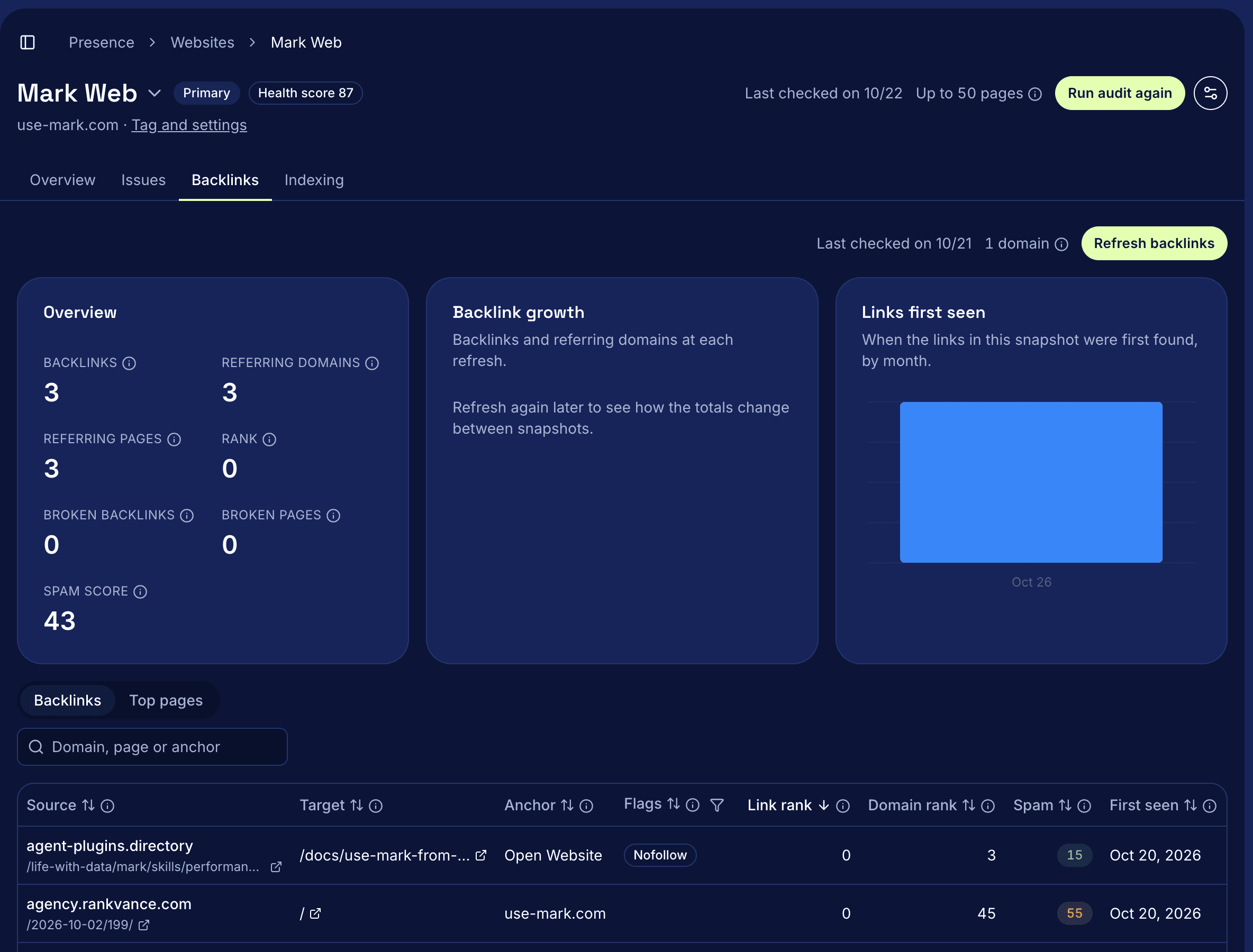
Mark's backlink checker shows which sites link to one of your websites, how strong each link is and how likely each linking site is spam. Each refresh saves a snapshot, so you can see how your backlinks and referring domains change over time. It sits on the Backlinks tab of each site under Presence > Websites.
How it works
- Open Presence > Websites, pick a site and select the Backlinks tab.
- Select Refresh backlinks. Opening the tab shows your last snapshot, and only a refresh fetches a new one.
- Read Overview: backlinks, referring domains, referring pages, Rank from 0 to 100, broken backlinks, broken pages and the average spam score.
- Watch Backlink growth, which plots backlinks and referring domains at each refresh once you have two. Links first seen counts the links by the month they were first found.
- In the link list, each row shows the source page, the target page on your site, the anchor text, a Nofollow flag, link rank, domain rank, spam score and first seen date. Sort by any column, search by domain, page or anchor, or show only followed or nofollow links.
- Open Top pages to see the pages on your site with the most links, with referring domains and best domain rank for each.
The site's Overview tab also has a short Backlinks card with the two totals, how each changed since the capture before, and when they were last checked.
Questions
What does the spam score mean?
It's how likely a linking site is spam, from 0 to 100. Under 30 is low and shows green, 30 to 59 is medium and shows amber, and 60 and up is high and shows red.
What is a broken backlink?
A link from another site to a page on yours that no longer loads. Broken pages counts the pages on your site that other sites link to but that no longer load.
How current are the numbers?
They're from your last refresh. The date next to Refresh backlinks shows when backlinks were last checked. Select it again to fetch a new snapshot.
Which sites can I check?
The websites you've added under Presence > Websites. Add a site there first, then open its Backlinks tab.
Read the docs
The backlinks guide defines each total and column.